

Step 1: Get the Sample Project
- StackBlitz (Recommended)
- Local Clone
Click the button below to launch the project directly in your browser. The project will automatically install all dependencies and start the development server. Please give it a moment to load.
Open in StackBlitz
Click here to launch a ready-to-code environment.
Step 2: Paste to .env
Open the.env file. Copy & Paste the following configuration:
StackBlitz will automatically restart the development server when you save the
.env file.Step 3: Run the Verification Flow
Now, let’s complete the verification.StackBlitz users: open the preview in a new browser tab before starting. The OIDC verification flow does not run inside StackBlitz’s embedded preview pane — the redirect to the Hopae Connect sandbox is blocked and the app throws an error. Click the Open in New Tab icon (the arrow-out-of-a-box button at the top-right of the preview pane, highlighted below) to open the app in a real browser tab, then run the verification there.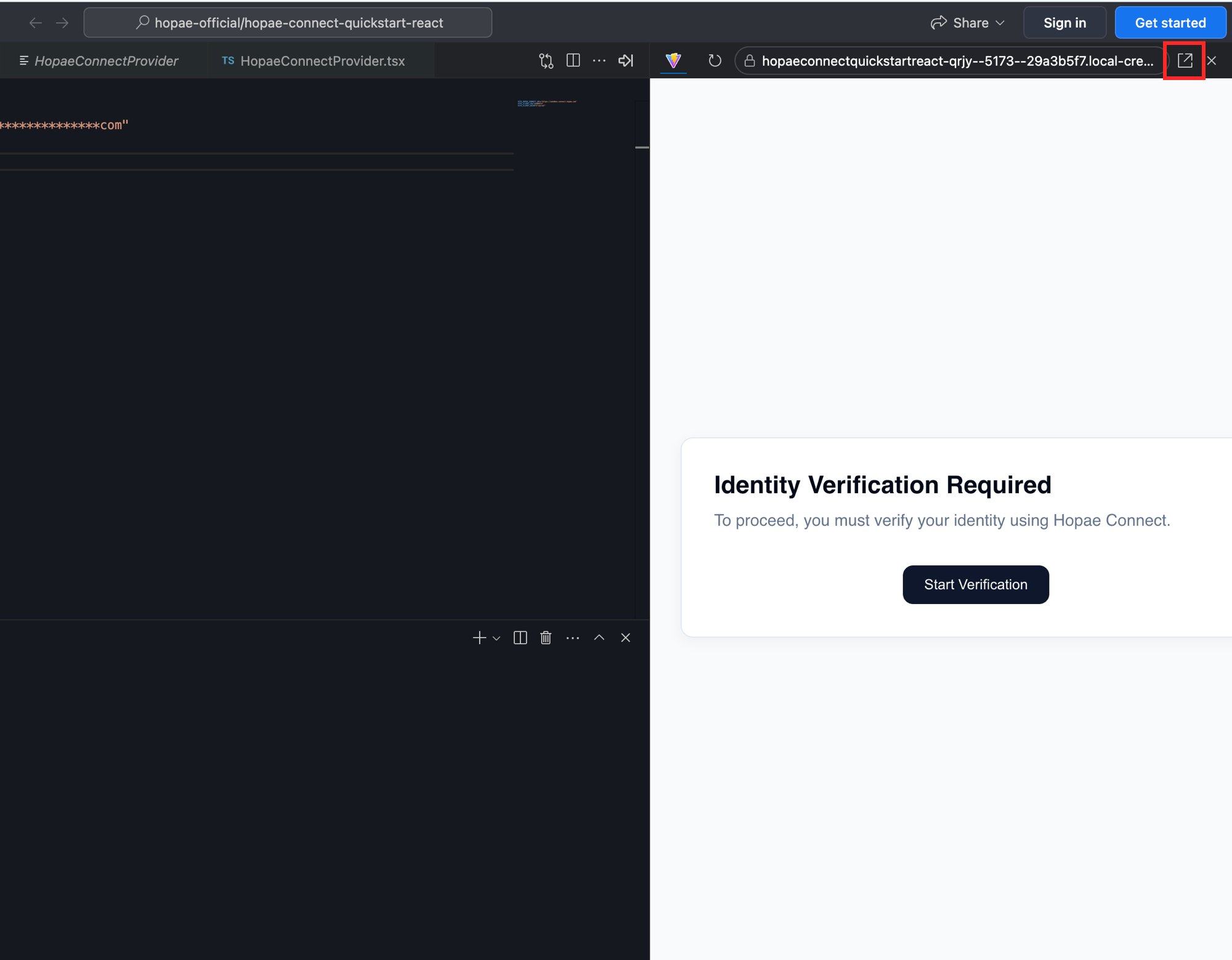
-
In the running app (the new browser tab for StackBlitz, or
localhostfor a local clone), click the “Start Verification” button. You will be redirected to the Hopae Connect sandbox. -
Follow these steps on the Hopae Connect screen:
- Select Estonia as the country.
- Choose Smart-ID as the verification method.
-
When prompted for credentials, use the following test data. You can click the copy icon on the code block.
Test Credentials
- Enter the code and complete the flow.
Next Steps
Now that you’ve seen how it works, you can integrate it into your own project.-
Get Your Own Credentials
Register your application in the Hopae Console to get your realClient ID. -
Integrate the Code
The core logic is contained in two files in the sandbox project:src/hopaeConnect.tsx: The reusable module that handles the OIDC flow.src/App.tsx: An example of how to use theuseHopaeConnecthook.
More
Data Types
All available user data fields
OIDC Integration Guide
Complete integration guide with all options